
Guías de PhotoRec
Siga estos pasos prácticos para recuperar archivos de forma segura con PhotoRec CLI y QPhotoRec GUI.
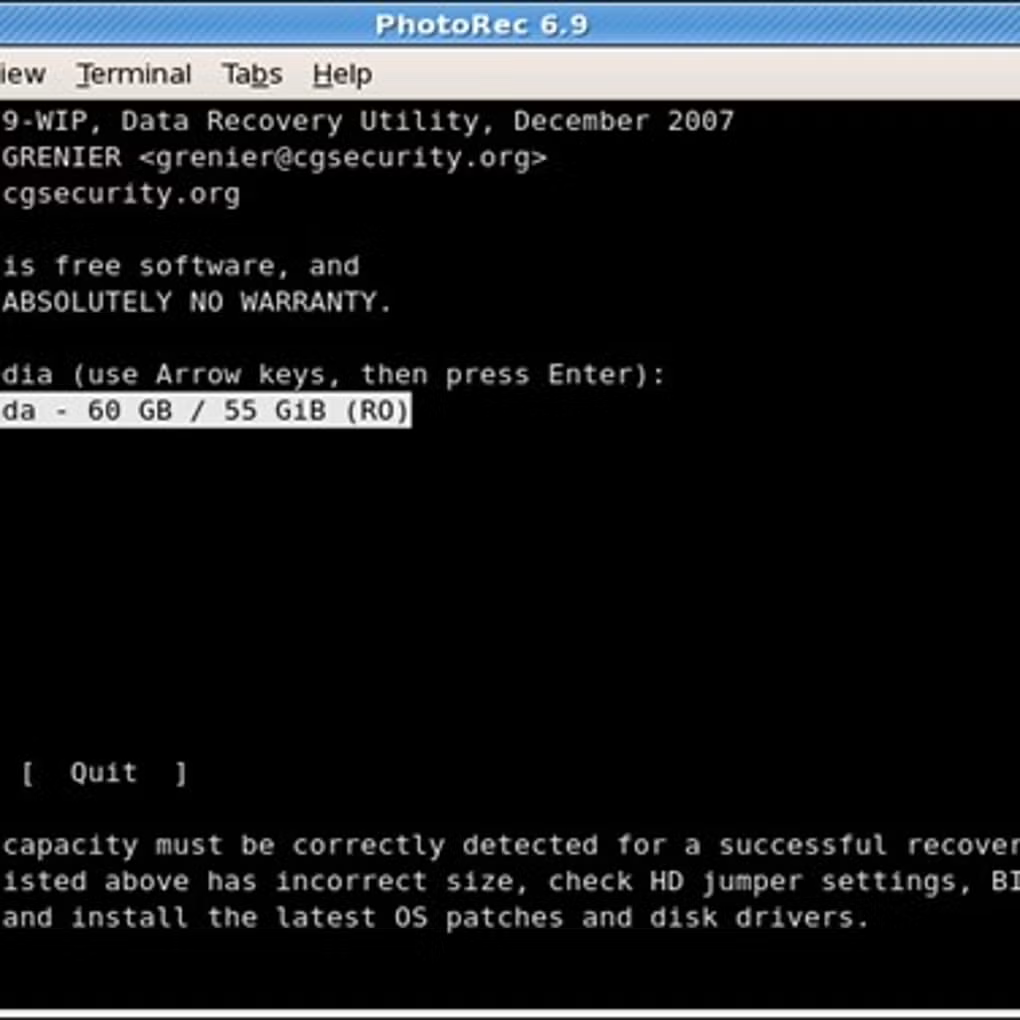
Paso 1 Seleccionar disco
Launch PhotoRec and choose the physical disk that contained the lost files. If you’re unsure, check the capacity and device path to identify the correct drive.
Paso 2 Seleccionar partición
Pick the partition that held the data. If the partition was deleted or corrupted, select the whole disk and let PhotoRec scan raw space.
Paso 3 Elegir opciones
Configure file families to recover (e.g., pictures, documents) and enable carving options that match your needs. Keep default settings for general recovery.
Paso 4 Establecer destino
Select a different drive or external media as the destination folder. This prevents overwriting data on the source device.
Paso 5 Iniciar recuperación
Begin the scan and monitor progress. You can stop and resume if needed; recovered files are saved incrementally to the destination.
Paso 6 Revisar resultados
Open the destination directory and verify the recovered files. Use sorting tips below to organize by type and time.
Regla de oro de la recuperación de datos
Do not save recovered files to the same drive they were lost from. Always write to a separate disk to avoid overwriting recoverable data.
Uso de QPhotoRec (GUI)
QPhotoRec provides a graphical interface to select disks, partitions, file families, and destination folders. It is ideal for users who prefer a guided workflow.
Cómo ordenar archivos recuperados
Recovered files are organized into folders by session and type. Sort by extension (e.g., .jpg, .mp4, .docx) and use date‑modified to group results. Many original filenames cannot be recovered due to lost directory metadata.
Common Problems & Best Practices
- If the scan finds few files, try scanning the whole disk instead of a single partition.
- Use a write blocker or ensure the source drive is not mounted read‑write.
- Avoid installing software to the affected drive; use portable builds when possible.
- For lost partitions, run TestDisk first, then use PhotoRec.